



VUB will launch the public test phase of MazeMap in April, a digital navigation tool that helps students, staff and visitors find their way around the Main Campus in Etterbeek, directly via the browser at mazemap.vub.be, with no app or login required.
New students, international visitors and external partners sometimes lose time finding the right location. MazeMap simplifies this process and guides users more quickly and efficiently to their destination.
For Ewaut Bergmans, AV Services staff member at VUB, the introduction fits within a broader ambition of the Infrastructure Directorate to make the campus more accessible and user-friendly: “Our campus is open, but not always easy to navigate. With MazeMap, we want to lower barriers and help people reach the right place more quickly.” The tool also offers adapted routes for people with reduced mobility, taking into account lifts and accessible entrances.
MazeMap is already used on international campuses and in complex environments such as hospitals. VUB is the first university in Belgium to implement this technology.
No app, no login
MazeMap is a digital campus map that allows users to easily search for buildings, rooms and facilities, and instantly receive directions to the exact location. Outdoors, your live position is shown; indoors, you follow clear, step-by-step directions.
You can access MazeMap via your browser at mazemap.vub.be. Downloading an app is optional, not required.
From timetable to classroom
Thanks to its integration with TimeEdit, the scheduling tool used by students and teaching staff, users can navigate directly from their timetable to the correct room. The fastest route is provided instantly.
MazeMap is also useful outside teaching hours. It helps you quickly locate study spaces, lecture halls, restrooms and other facilities. For those less familiar with the campus, it makes the environment much easier to understand and navigate.
Test phase in April
Following the start of implementation earlier this year, extensive internal testing has taken place in recent weeks. In April, MazeMap will enter its public testing phase and will be refined where needed. The tool is already usable and will continue to improve based on user feedback. “We mainly want to learn how people use the tool in practice,” says Ewaut. Users can report comments or errors via the feedback button in the search bar. If the evaluation is positive, the rollout will be further assessed, and campus Jette will also follow.
MazeMap – FAQ
General
- What is MazeMap?
MazeMap is a digital campus map that helps visitors, students and staff easily find their way. It shows both outdoor areas and building interiors, including rooms and facilities, organised by floor.
- On which devices can I use MazeMap?
MazeMap works in a web browser on computers, tablets and smartphones via mazemap.vub.be. No installation is required. If preferred, the app can also be downloaded from the App Store or Google Play.
Search and navigation
- How do I search for a location?
Use the search bar at the top of the map. Enter the name of a building, room or service. Results appear automatically.
- How do I get directions?
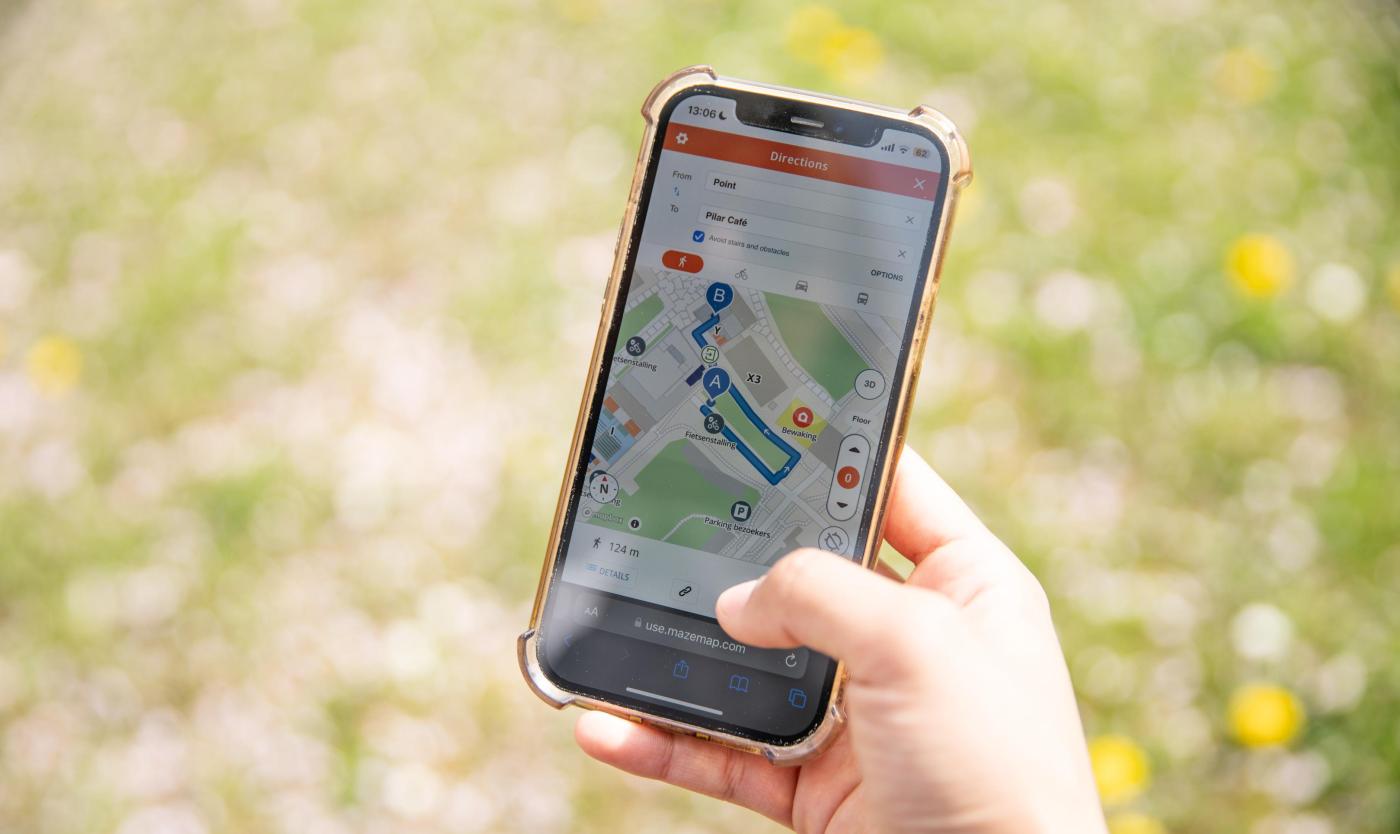
Select a location and click “Directions”. Enter a starting point and the route will be calculated automatically.
- Can I navigate between different buildings?
Yes. MazeMap combines indoor and outdoor navigation and guides you smoothly between buildings, including across floors.
- How do I switch floors?
Use the floor selector on the right-hand side of the map.
- Can I track my location?
Outdoors, you can follow your live location. Indoors, this may be less accurate, but the route remains clearly indicated.
Is MazeMap accessible for people with reduced mobility?
Yes. When planning a route, you can select an accessible option that avoids stairs and obstacles.
Categories and locations
- What are categories?
Categories allow you to quickly display specific types of locations, such as restrooms, bicycle parking, food outlets or AED devices.
- What is an AED?
An AED (Automated External Defibrillator) is a device used in case of cardiac arrest. Locations are shown on the map.
- What is included under facilities?
This includes general campus services such as security and administrative desks.
Map and settings
- Can I view the map in 3D?
Yes. Use the 3D button to switch to a three-dimensional view.
- Can I change the language?
Yes. You can adjust the language via the settings menu.
- Are there accessibility options?
Yes. A high-contrast mode and screen reader support are available.
Additional features
- Can I navigate from my timetable?
Yes. Through the integration with TimeEdit, you can go directly from your timetable to the correct room.
- Can I share a location?
Yes. Use the share button to generate and send a direct link.
- Can I save locations?
Yes. You can save locations as favourites for quick access later.
Issues and feedback
- The map is not loading. What should I do?
Check your internet connection and refresh the page. For best performance, use an up-to-date browser.
- I found an error on the map. What should I do?
You can report this via the feedback button in the search bar. This helps improve the map over time.